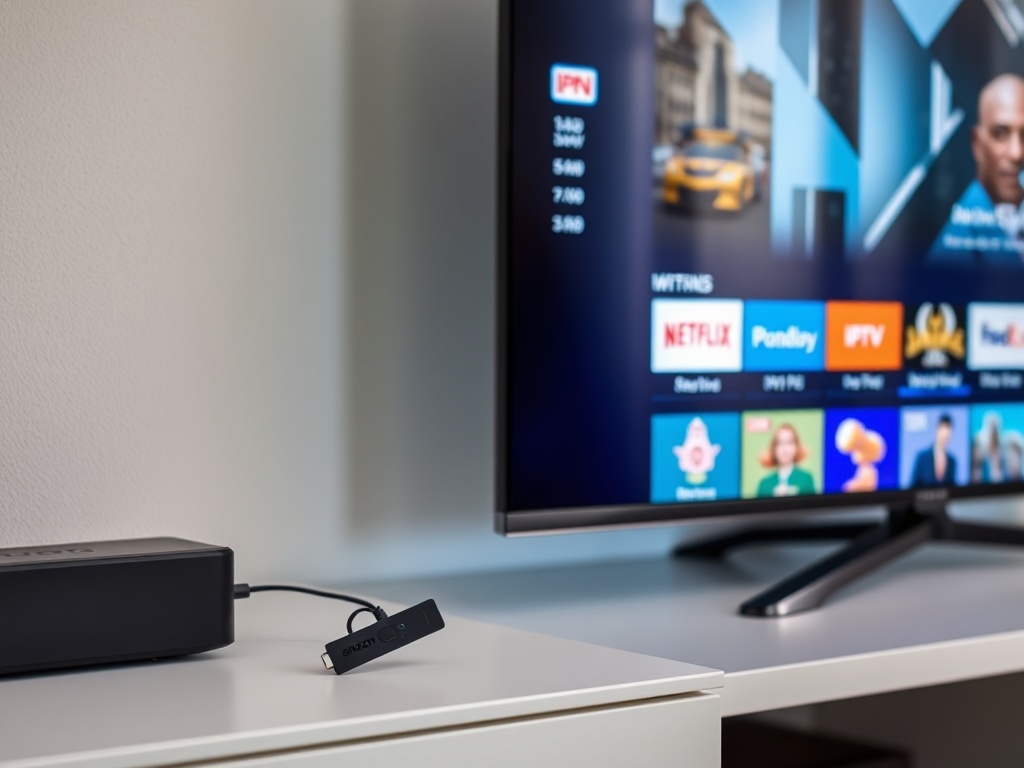
Preparing to begin IPTV on your Amazon Fire TV With our 2026 guide, setting up your device is a breeze. Whether you’re using a Firestick, Fire TV Cube, or Fire TV Stick 4K, this tutorial will lead you through the entire setup in just 5 minutes.
What You'll Need Before Starting
Before starting the setup of your IPTVAM IPTV service on Fire TV, make sure you have:
- Amazon Fire TV Device: Firestick, Fire TV Cube, or Fire TV Stick 4K (2016 or newer)
- Active IPTV Subscription: Your IPTVAM service credentials
- Stable Internet Connection: Minimum 25 Mbps for HD, 50+ Mbps for 4K content
- Amazon Account: Required for app store access
- Remote Control: Fire TV remote or Fire TV app on mobile
Best IPTV Apps for Fire TV in 2026
Amazon Fire TV excels in IPTV app compatibility. Here are our best suggestions:
1. IPTV Smarters Pro
A top pick for Fire TV users, offering a wide range of features:
- ✅ User-friendly interface optimized for Fire TV
- ✅ Full EPG (Electronic Program Guide) support
- ✅ Multi-screen and picture-in-picture mode
- ✅ Parental controls and favorites management
- ✅ Catch-up TV and recording capabilities
2. TiviMate IPTV Player
An elite option equipped with advanced features for experienced users:
- ✅ Professional-grade interface
- ✅ Multiple playlist support
- ✅ Advanced EPG customization
- ✅ Scheduled recordings and reminders
- ✅ Excellent channel organization tools
3. Smart IPTV
A reliable and lightweight solution for essential IPTV tasks:
- ✅ Simple, clean interface
- ✅ Fast channel loading
- ✅ Basic EPG functionality
- ✅ Low resource usage
- ✅ Stable performance
Step-by-Step Fire TV IPTV Setup
Step 1: Enable Apps from Unknown Sources
The initial step involves allowing apps to be installed from beyond the Amazon App Store.
- Go to Settings from your Fire TV home screen
- Navigate to My Fire TV or Device & Software
- Select Developer Options
- Turn ON Apps from Unknown Sources
- Click Turn On when the confirmation dialog appears
Step 2: Install the Downloader App
The Downloader app enables the installation of IPTV apps.
- Return to the Fire TV home screen
- Use the search icon (magnifying glass)
- Type "Downloader" and select it from results
- Click Get or Download
- Wait for installation to complete
- Open the Downloader app once installed
Step 3: Download Your IPTV App
Next, we’ll download the IPTV application you prefer.
For IPTV Smarters Pro:
- In Downloader, enter the URL:
bit.ly/iptvsmartersfiretv - Click Go to start the download
- Once downloaded, click Install
- Click Done after installation
- Select Delete to remove the APK file
- Click Delete again to confirm
For TiviMate:
- In Downloader, enter the URL:
bit.ly/tivimatefiretv - Follow the same installation process as above
Step 4: Launch and Configure Your IPTV App
It’s time to get your IPTVAM subscription ready.
Using IPTV Smarters Pro:
- Find the installed app in Apps & Games
- Launch IPTV Smarters Pro
- Select Login with Xtream Codes API
- Enter your IPTVAM username
- Enter your password
- Input the server URL from your welcome email
- Click Login and wait for channels to load
Using TiviMate:
- Launch TiviMate from your apps
- Select Add Playlist
- Choose Xtream Codes API
- Enter your IPTVAM credentials
- Input the server URL
- Click OK to add your playlist
Step 5: Customize Your Viewing Experience
Improve your Fire TV IPTV setup with these configurations.
- Video Quality: Set to Auto, 1080p, or 4K based on your internet speed
- EPG Settings: Enable program guide for TV schedules
- Channel Groups: Organize by country, category, or favorites
- Parental Controls: Set PIN for restricted content
- Audio Output: Choose best format for your sound system
Advanced Fire TV IPTV Features
Using Multiple Playlists
Many people seek to use different IPTV platforms.
- In IPTV Smarters, go to Settings → Manage Accounts
- Add multiple IPTV service accounts
- Switch between playlists easily from the main menu
- Organize content by service provider
Setting Up Recording and Catch-Up
Ensure you never miss your preferred programs.
- Enable catch-up TV in app settings
- Navigate to the program guide (EPG)
- Select programs from the past 7 days
- Set up scheduled recordings for future content
- Manage recordings in the dedicated section
Optimizing Performance
Enjoy top-notch streaming quality on Fire TV.
- Clear app cache regularly (Settings → Applications)
- Use a wired Ethernet connection when possible
- Restart your Fire TV device weekly
- Close background apps while streaming
- Update your Fire TV firmware regularly
Troubleshooting Common Fire TV Issues
App Won't Install or Open
Should you face difficulties with app installation:
- Double-check that "Apps from Unknown Sources" is enabled
- Ensure you have sufficient storage space
- Restart your Fire TV device and try again
- Try downloading the app from a different URL
- Check if your Fire TV model is compatible
Channels Not Loading
If your channels fail to display:
- Verify your internet connection is working
- Check that your IPTVAM subscription is active
- Double-check your login credentials for accuracy
- Try switching to a different server URL
- Restart the IPTV application
- Contact IPTVAM support if issues persist
Buffering and Quality Issues
To ensure smooth and uninterrupted playback:
- Test your internet speed (must be 25+ Mbps)
- Connect your Fire TV via Ethernet instead of WiFi
- Lower video quality from 4K to 1080p
- Restart your router and modem
- Close other apps running in the background
- Try streaming during off-peak hours
Audio/Video Sync Problems
Fix issues with lip-sync and audio:
- Check your TV's audio settings
- Try different audio output formats
- Disable audio passthrough in app settings
- Update your Fire TV software
- Restart both Fire TV and your television
Fire TV Remote Tips and Tricks
Using the Fire TV App
Improve your experience using the mobile app.
- Download the Fire TV app on your smartphone
- Use voice commands for hands-free control
- Type text easily with your phone keyboard
- Navigate using the touchpad interface
- Switch between multiple Fire TV devices
Keyboard Shortcuts
Speed up navigation with these shortcuts:
- Menu + Back: Return to home screen
- Fast Forward/Rewind: Skip 10 seconds
- Long Press OK: Access context menu
- Menu Button: Open settings and options
Security and Privacy Tips
Safeguard your privacy during streaming:
- Use a reputable VPN service on your router
- Keep your Fire TV software updated
- Only download apps from trusted sources
- Use strong, unique passwords for accounts
- Enable two-factor authentication when available
- Regularly review app permissions
Conclusion
Getting IPTV running on your Amazon Fire TV is hassle-free with this complete guide. Your IPTVAM membership unlocks thousands of channels and on-demand shows in excellent resolution. To ensure smooth streaming, keep your applications current and maintain a strong internet connection.
Require extra support? Contact our 24/7 support team for individual guidance on your Fire TV installation.